Install MultiClaw
Download the installer for your platform from https://download.multiclaw.io, run it, and MultiClaw sets itself up — including OpenClaw in the background. The whole process takes a few minutes.
System requirements
| Platform | Requirement |
|---|---|
| macOS | macOS 12 (Monterey) or later · Apple Silicon or Intel |
| Windows | Windows 10 or later (64-bit) |
| Linux | Ubuntu 20.04+ or equivalent (glibc 2.31+) |
| RAM | 4 GB minimum · 8 GB recommended |
| Disk | 500 MB for the app · OpenClaw data grows over time |
| Internet | Required for MultiClaw Cloud features · local use works offline after initial setup |
Before you begin
You need a MultiClaw account to sign in on first launch. If you don't have one yet, see Create your account.
Download MultiClaw
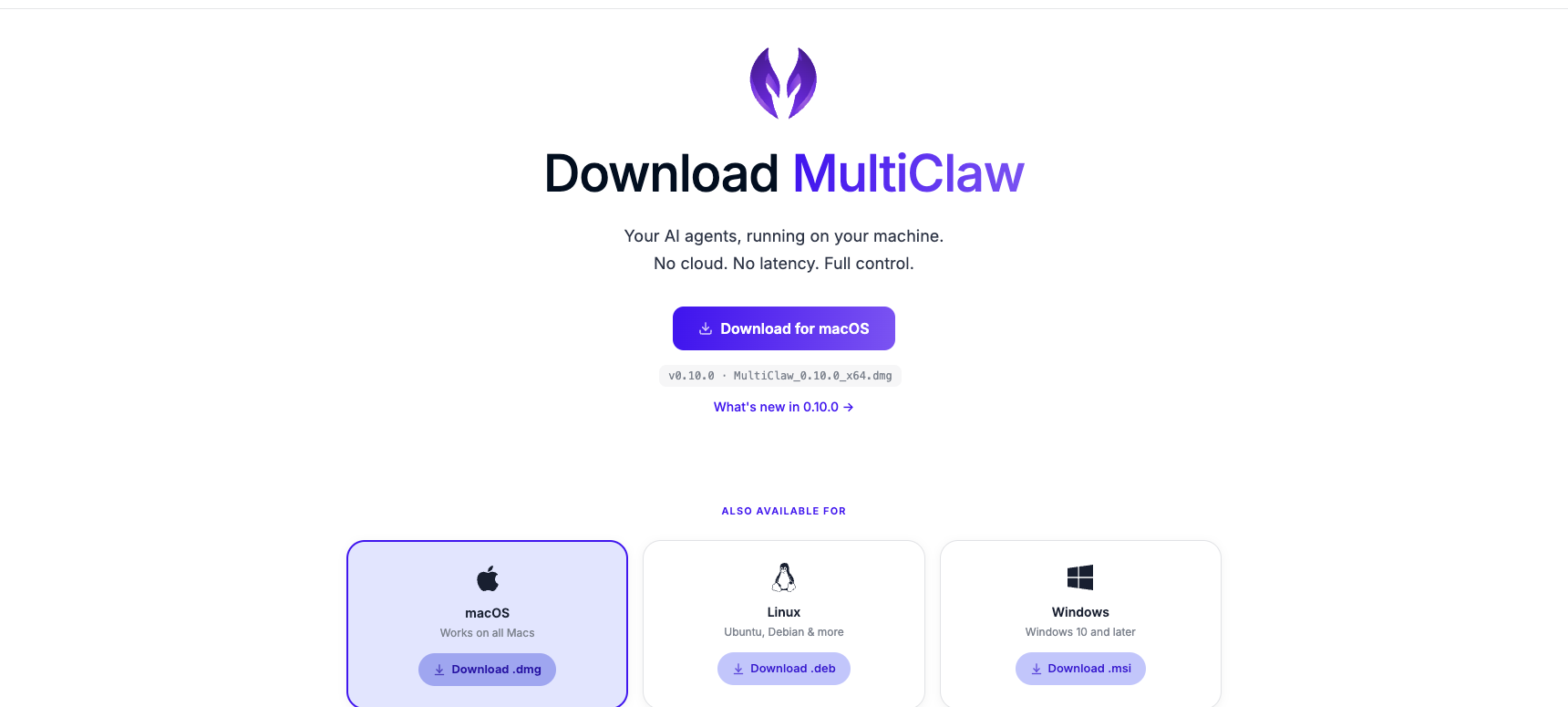
Go to https://download.multiclaw.io and select your platform.
Install on macOS
- Open the downloaded
.dmgfile. - Drag MultiClaw into your Applications folder.
- Open Applications, then double-click MultiClaw to launch it. You can also open it from Spotlight (Cmd+Space, then type "MultiClaw").
On first launch, macOS may show a security prompt. If it does, go to System Settings → Privacy & Security and click Open Anyway.
Install on Windows
Both the .msi and .exe formats install the same application. If you're unsure which to use, choose the .exe installer.
- Run the downloaded
.msior.exeinstaller. - Follow the on-screen prompts to complete the installation.
- MultiClaw launches automatically when the installer finishes.
Windows SmartScreen may show a warning on first launch. Click More info, then click Run anyway.
Install on Linux
MultiClaw is available as an AppImage (portable, no installation needed) or as a .deb package (integrates with your application menu and package manager). Use AppImage if you're unsure.
AppImage (universal)
The AppImage runs on any compatible Linux distribution without installation.
- Open a terminal and navigate to the folder containing the downloaded file.
- Make the file executable:
chmod +x MultiClaw-*.AppImage - Run it:
./MultiClaw-*.AppImage
.deb package (Debian / Ubuntu)
- In a terminal, run:
Alternatively, double-click thesudo dpkg -i multiclaw_*.deb.debfile in your file manager and click Install. - Launch MultiClaw from your application menu or by running
multiclawin a terminal.
If dpkg reports missing dependencies, run sudo apt-get install -f to resolve them, then launch MultiClaw.
First launch
When you open MultiClaw for the first time, a welcome screen guides you through setup:
- Choose how you want to run agents: Run locally (on your own machine) or Use cloud desktop.
- Sign in with your email and password, or click Continue with Multiplai if you have a Multiplai account.
- The app installs and starts OpenClaw automatically in the background. No manual configuration is needed.
- Once setup completes, the main interface opens. You're ready to start your first conversation.
For the full connection walkthrough, see Connect to your workspace.
Related articles
Connect to your workspace
How to connect the MultiClaw desktop app to your workspace in local or cloud mode, and how to check your connection status.
Start your first conversation
Open MultiClaw, select an agent, type your message, and start working — your first conversation takes less than a minute.
What is MultiClaw?
MultiClaw is a desktop app for running AI agents that do real computer work — on your machine or a cloud desktop.