How MultiClaw works
MultiClaw has four components: the desktop app you install on your computer, MultiClaw Cloud (the cloud platform at multiclaw.ai), the MultiClaw Chrome Extension (an optional browser extension for recording workflows), and OpenClaw (the open-source agent engine that processes your requests and runs tasks). You interact with the desktop app daily — the rest work in the background. Understanding how they connect helps you know where your data lives and what to check when something goes wrong.
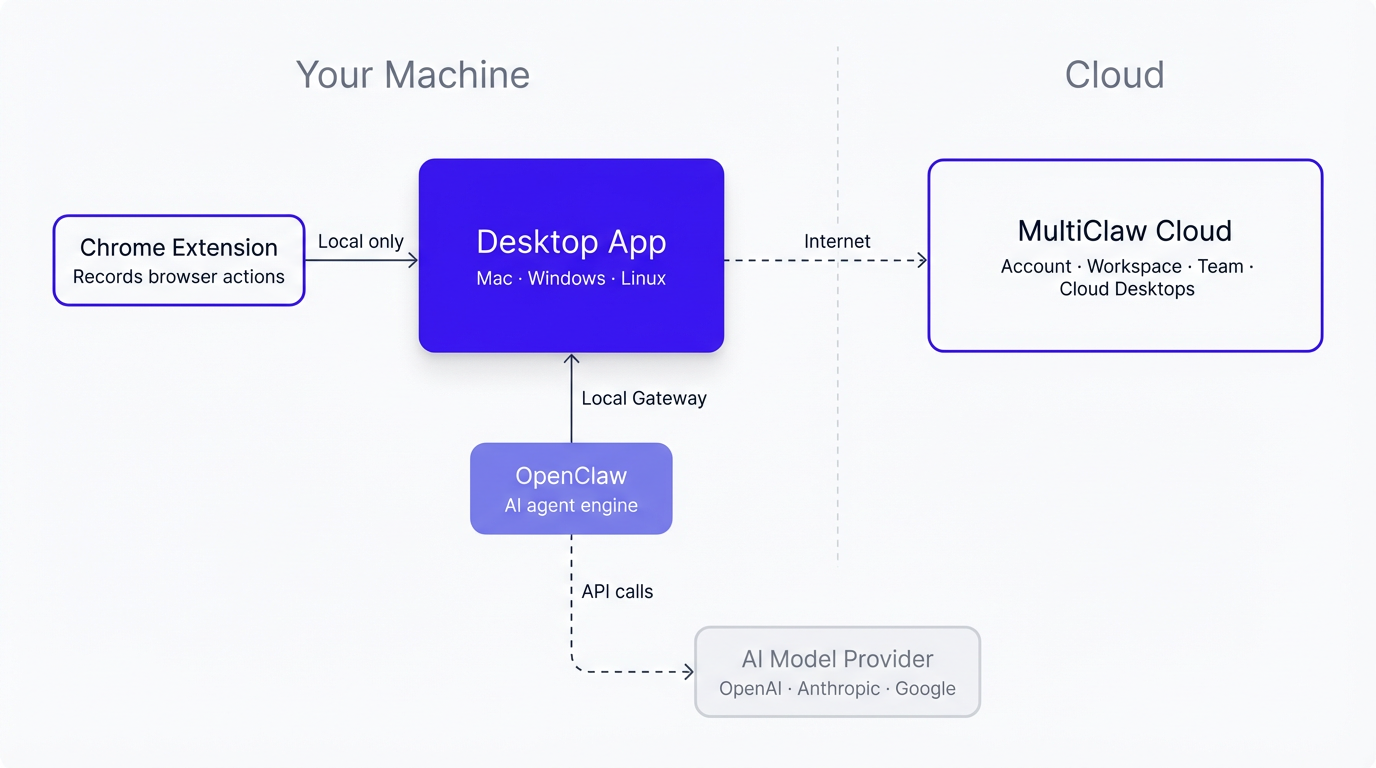
The four components
Desktop app
The desktop app is the application you install on your Mac, Windows, or Linux computer. It's where you chat with agents, review plans, approve task execution, and monitor what's happening. The app connects to OpenClaw locally and to MultiClaw Cloud over the internet. It doesn't have its own database — it reads and writes OpenClaw's files directly.
MultiClaw Cloud
MultiClaw Cloud is the cloud platform that manages your account, workspace, team membership, and cloud desktops. It also runs the relay server that routes signals between your desktop app and any agents running on cloud desktops. When you sign in, MultiClaw Cloud verifies your identity and issues the credentials everything else uses.
MultiClaw Chrome Extension
The MultiClaw Chrome Extension is an optional browser extension for Chrome, Chromium, Edge, Brave, and Arc. It records your browser actions — clicks, form fills, and page navigation — so you can save them as reusable skills that agents can follow. It communicates only with your local desktop app. You only need it if you want to record browser workflows.
OpenClaw
OpenClaw is the open-source engine that processes your requests and carries out tasks. It runs either locally on your machine or on a cloud desktop — a remote computer managed by MultiClaw Cloud. OpenClaw stores your conversations, agent configurations, skills, and scheduled workflows as files, not in a proprietary database. MultiClaw handles all communication with OpenClaw; you never need to interact with it directly.
How a task works
From your perspective, running a task looks like a conversation. Here's what happens at each step:
- You type a message in the desktop app.
- The desktop app sends your message to OpenClaw over a local connection.
- OpenClaw processes your request using your configured AI model.
- The agent drafts a plan — an ordered list of steps it proposes to take.
- The desktop app shows you the plan. You review it, edit any steps if needed, and click Approve.
- The agent executes the plan — on a cloud desktop or your local machine, depending on the task.
- Results stream back to your desktop app in real time as work completes.
By default, your approval is required before the agent takes any action. The agent cannot proceed past the plan stage without it. Scheduled tasks and automated workflows may run without real-time approval when explicitly configured.
What stays local, what goes to the cloud
| Data | Where it lives |
|---|---|
| Conversation history | On your machine (local mode) or on your cloud desktop (cloud mode) |
| Agent configurations and skills | On whichever machine OpenClaw is running |
| Your account, workspace, and team settings | MultiClaw Cloud |
| Task signals and approvals | Routed through MultiClaw Cloud — your machine and cloud desktop do not connect directly |
| Message content sent to AI models | Your configured AI model provider (e.g. OpenAI, Anthropic, Google) — see our Privacy Policy |
| Files created during task execution | On the cloud desktop while the task runs |
In local mode, all OpenClaw data is stored in a standard folder on your machine (~/.openclaw/ on Mac and Linux, %USERPROFILE%\.openclaw on Windows). You can back it up like any other folder.
When you send a message, its content is transmitted to your configured AI model provider (such as OpenAI, Anthropic, or Google) for processing. Those providers handle this data under their own terms of service and privacy policies.
Related articles
What is MultiClaw?
MultiClaw is a desktop app for running AI agents that do real computer work — on your machine or a cloud desktop.
Install MultiClaw
Download and install MultiClaw on macOS, Windows, or Linux, including system requirements and first-launch setup.
Start your first conversation
Open MultiClaw, select an agent, type your message, and start working — your first conversation takes less than a minute.