Allowed external connections
Last updated Mar 31, 2026
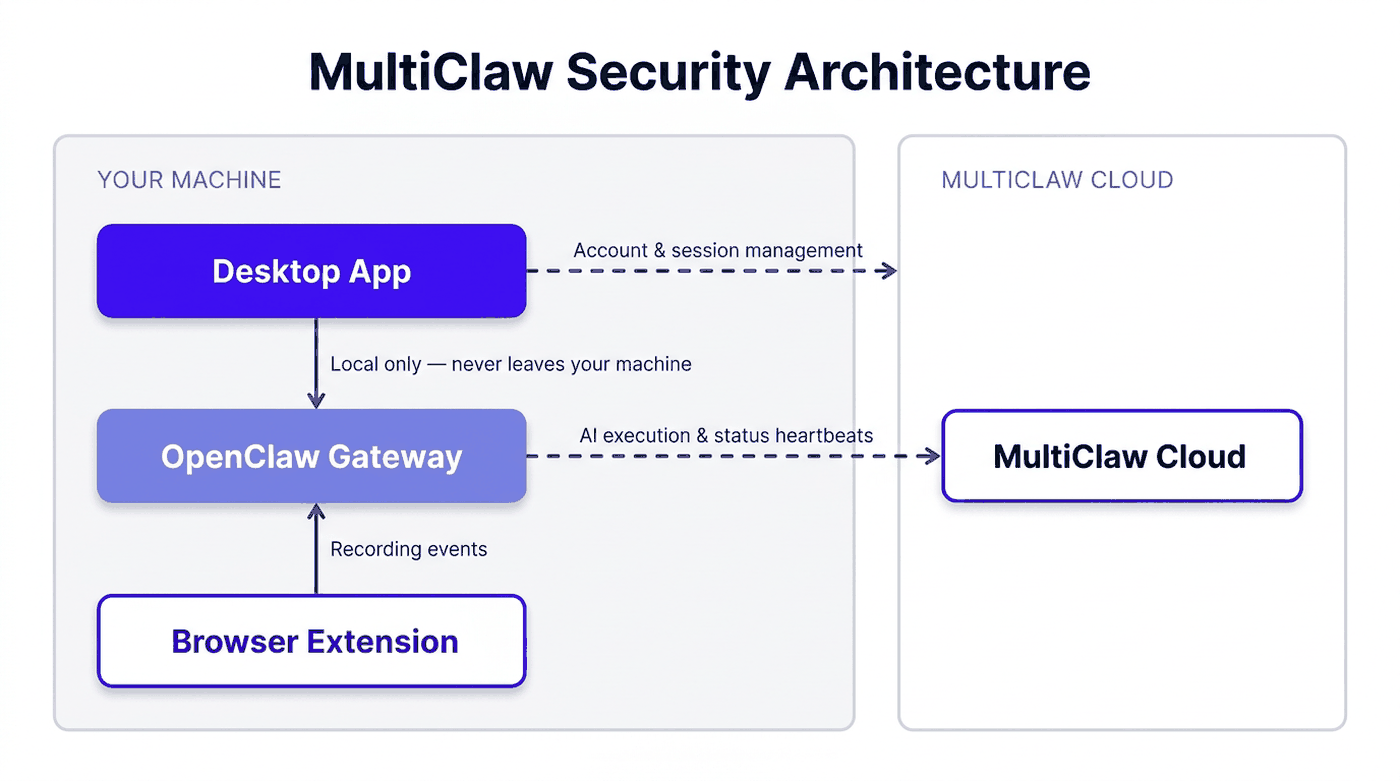
The desktop app and gateway make outbound connections to MultiClaw Cloud, your configured LLM providers, and a few supporting services. Connections to LLM providers and custom MCP servers activate only after you set them up — no traffic reaches a provider you haven't configured.
For port, protocol, and firewall allowlisting details, see Network security.
Connection inventory
Some connections in this table are conditional. LLM provider entries activate only when you've added a matching API key. Custom MCP server entries appear only after you've enabled an MCP server in your settings.
| Connection | Host | Protocol | When it occurs |
|---|---|---|---|
| MultiClaw Cloud (API) | api.multiclaw.io | HTTPS | While the gateway is running and connected |
| MultiClaw Cloud (WebSocket) | ws.multiclaw.io | WSS | While the gateway is running |
| Auto-updater | cdn.multiclaw.io | HTTPS | On app launch and when you check for updates |
| TURN relay (WebRTC) | turn.multiclaw.io | HTTPS + UDP | When you open a cloud desktop |
| OpenAI API | api.openai.com | HTTPS | When a task uses an OpenAI model |
| Anthropic API | api.anthropic.com | HTTPS | When a task uses an Anthropic model |
| Google Gemini API | generativelanguage.googleapis.com | HTTPS | When a task uses a Gemini model |
| Real-time events (Pusher) | *.pusher.com | WSS | During SOP generation and skill compilation |
| Link title preview | api.microlink.io | HTTPS | When a chat message contains a URL |
| Favicon service | www.google.com | HTTPS | When a chat message displays a tool call with a URL |
| Custom MCP servers | User-configured | Varies | When an MCP server is enabled in your settings |
MultiClaw Cloud connections
The gateway opens two connections to MultiClaw Cloud while running:
- API (
api.multiclaw.io): syncs configuration, task state, and workspace membership between the desktop app and MultiClaw Cloud. Synced data includes agent settings, encrypted API keys, and task assignments. The gateway also sends periodic heartbeats so MultiClaw Cloud can report your instance's connection status. - WebSocket (
ws.multiclaw.io): receives real-time events from MultiClaw Cloud, such as new task assignments and configuration changes pushed by other team members.
Both connections authenticate with your account session. They carry coordination and configuration data — not your prompts, task content, or files sent to LLM providers.
Auto-updater
On launch, the desktop app sends a version check to cdn.multiclaw.io. The request includes your current app version and operating system so the CDN can return the correct installer if an update is available. No account identifiers, usage data, or behavioural information is included in the request.
You can also trigger an update check manually from the desktop app's menu.
TURN relay
When you open a cloud desktop, the app connects to turn.multiclaw.io to relay the session's encrypted media stream — screen output from the cloud desktop and your keyboard and mouse input. The TURN server activates only when a direct peer-to-peer connection between your machine and the cloud desktop isn't possible, which is common in corporate or restricted networks.
The relay handles only the encrypted WebRTC stream. The connection closes when you leave the cloud desktop session.
LLM provider connections
MultiClaw contacts only the LLM providers you've configured. If you haven't entered an API key for a provider, no connection is made to that provider. For example, adding only an Anthropic key means the app never contacts OpenAI or Google.
Your API keys are stored encrypted in MultiClaw Cloud and delivered to your instance during configuration sync. They are not stored in plaintext on your local machine. See How credentials and secrets are stored for full details.
Each provider connection sends only the data needed to fulfil the task: your prompt, context, and any files you explicitly include. The provider processes this data under its own terms of service and privacy policy. Review your provider's data-use policy to understand how request content is handled and whether it is used for model training.
Real-time events (Pusher)
When you use SOP generation or skill compilation, the desktop app opens a WebSocket connection to Pusher (*.pusher.com) for live progress updates. Your existing MultiClaw Cloud session authenticates this connection. The connection closes when the operation completes.
No task content reaches Pusher. The connection carries only structured progress events, subject to Pusher's Privacy Policy.
Link preview and favicon services
When a chat message contains a URL, the desktop app automatically sends that URL to api.microlink.io to fetch the page title for display. Microlink processes the URL, subject to Microlink's Privacy Policy.
When a chat message displays a tool call with a URL, the app fetches a favicon from https://www.google.com/s2/favicons to display an icon beside the link. The app sends the domain portion of that URL to Google's favicon service, subject to Google's Privacy Policy.
Custom MCP servers
Your server configuration determines which custom MCP servers the app connects to. MultiClaw does not inspect, control, or audit traffic to or from custom MCP servers. No connections occur unless you've added and enabled an MCP server in your settings.
Review the network requirements and trustworthiness of any MCP server before adding it. See Shared responsibility model for the breakdown of your responsibilities versus the provider's.
No telemetry or analytics connections
MultiClaw makes no telemetry, analytics, or crash-reporting connections. No usage metrics, behavioural analytics, or diagnostic payloads are sent to MultiClaw or any analytics service.
The Pusher, Microlink, and Google connections described above serve specific UI functions, not analytics or tracking. The sections above detail what data each service receives and link to the relevant privacy policies.
Blocked connections
Not all connections are required for the desktop app to function. If your network restricts outbound traffic, use this table to understand the impact of blocking each connection.
| Connection | Effect of blocking |
|---|---|
| MultiClaw Cloud (API / WebSocket) | The gateway cannot sync configuration or receive task assignments. Core app functionality stops. |
| Auto-updater | The app continues working but won't receive automatic updates. Download updates manually from the MultiClaw website. |
| TURN relay | Cloud desktop sessions may fail if your network also blocks direct peer-to-peer connections. |
| LLM providers | Tasks that use the blocked provider's models fail. Other configured providers remain available. |
| Pusher | SOP generation and skill compilation lose live progress indicators. The operations still complete in the background. |
| Microlink | Chat messages with URLs display without title previews. |
| Google favicon | Chat messages with tool-call URLs display without favicon icons. |
| Custom MCP servers | The blocked server becomes unavailable. Other MCP servers and core functionality are unaffected. |
To verify the connections your desktop app makes, use a network monitor such as Little Snitch (macOS), GlassWire (Windows), or your operating system's built-in firewall logs.
Related articles
Network security
How MultiClaw secures every network connection using TLS, authenticated tokens, and no inbound ports.
Privacy and data handling
MultiClaw collects no telemetry, keeps conversations local by default, and gives you full control over your personal data.
How credentials and secrets are stored
API keys are encrypted in MultiClaw Cloud, auth tokens rely on OS file permissions, and session tokens live in memory only.