Network security
Last updated Mar 31, 2026
Every connection MultiClaw makes is encrypted and authenticated. Your machine opens no inbound ports, and each credential stays within its intended trust zone.
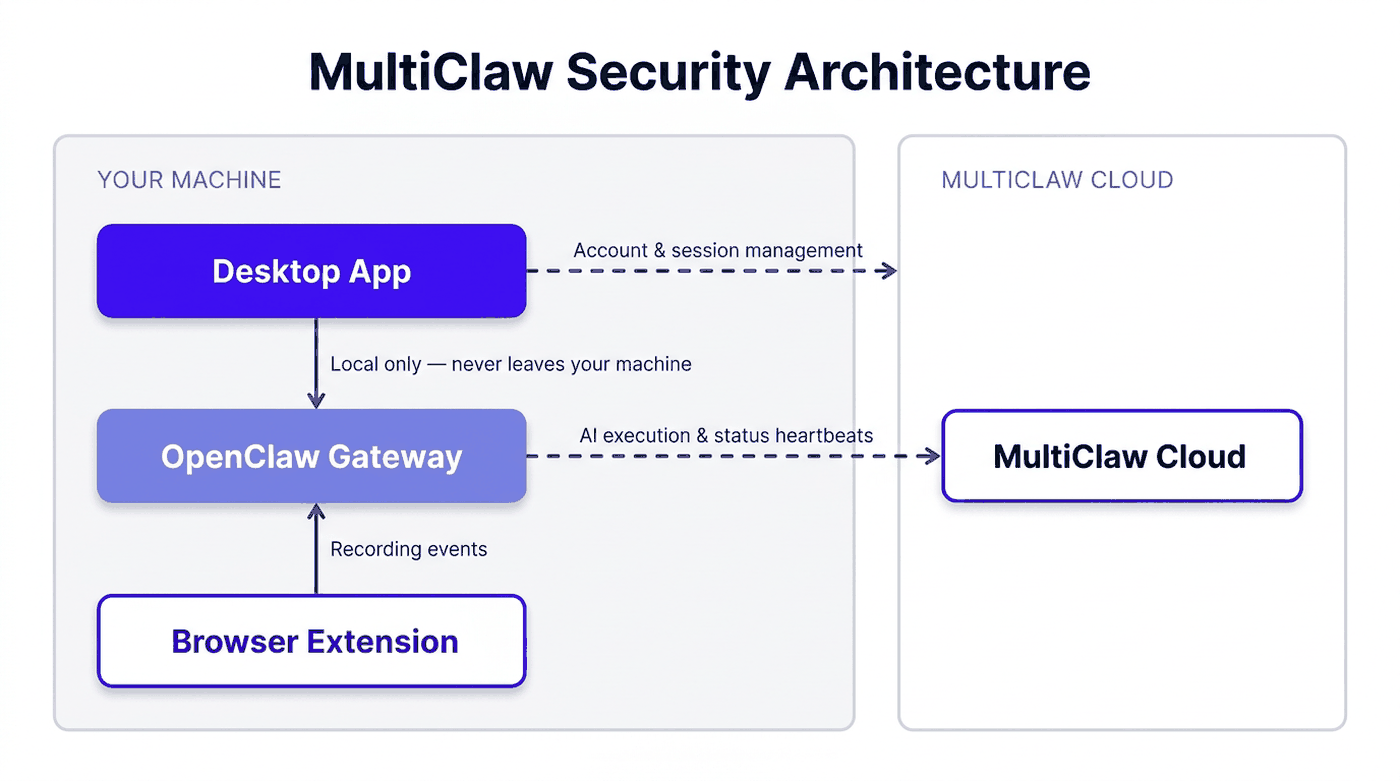
Connection summary
| Connection | Protocol | Authentication | Data carried | Notes |
|---|---|---|---|---|
| Desktop app → MultiClaw Cloud | HTTPS (REST) and WSS (WebSocket) | Bearer token (persists until logout); WSS uses a separate short-lived HMAC token | Account, workspace, task, and agent configuration data; real-time status events | TLS 1.2 minimum, TLS 1.3 preferred |
| Local OpenClaw gateway → MultiClaw Cloud | WSS (WebSocket) | Long-lived workspace auth token stored locally; per-session short-lived signed token (memory only) | Heartbeats, agent status, task execution updates, configuration sync | Separate trust zone from the desktop app; each uses its own credentials |
| Desktop app → local OpenClaw gateway | HTTP on localhost (127.0.0.1) | Session token generated at gateway start | Agent commands, conversation messages, local status queries | Not exposed on any network interface |
| Cloud desktop viewer | WebRTC DataChannel (DTLS/SCTP) | ICE negotiated via MultiClaw Cloud over WSS | JPEG video frames and input events | TURN relay used when direct peer-to-peer is unavailable |
| LLM provider API calls | HTTPS | API key stored encrypted in MultiClaw Cloud, pushed to your instance during config sync | Prompts, model responses, and tool-call payloads | Encrypted at rest and in transit; does not appear in agent responses, transcripts, or logs |
Desktop app to MultiClaw Cloud
Your desktop app connects to MultiClaw Cloud over HTTPS for API calls and WSS for real-time events. Both require TLS 1.2 at minimum; TLS 1.3 is preferred when available.
Authentication uses a bearer token issued when you sign in. The desktop app stores this token in the WebView's local storage, where it persists until you sign out. The WSS connection uses a separate short-lived HMAC token that expires and refreshes automatically. Even if a WebSocket token is compromised, its short lifespan limits exposure.
The desktop app always initiates outbound connections. MultiClaw Cloud does not initiate connections back to your machine.
If the HTTPS or WSS connection drops, the desktop app reconnects automatically and re-authenticates with the existing bearer token. You don't need to sign in again unless the token has been revoked (for example, after a password change or a forced sign-out by a workspace owner).
Local OpenClaw gateway to MultiClaw Cloud
The local OpenClaw gateway maintains its own WSS connection to MultiClaw Cloud. This connection operates in a separate trust zone from the desktop app — each uses its own credentials and neither shares tokens with the other.
The gateway authenticates with a long-lived workspace auth token stored in ~/.openclaw/openclaw.json. For each WebSocket session, the gateway generates a separate short-lived signed token in memory and does not write it to disk. When the session ends, the gateway discards the token and generates a new one on reconnect.
If the gateway's WebSocket connection drops, the gateway reconnects and generates a fresh short-lived session token. Running tasks continue locally during brief outages — status updates sync to MultiClaw Cloud once the connection is restored.
See How credentials and secrets are stored for details on how these tokens are managed.
Desktop app to local OpenClaw gateway
The desktop app communicates with the local OpenClaw gateway over HTTP on 127.0.0.1 (localhost). This connection stays on your machine and is not exposed on any network interface — only local software can reach it.
Authentication uses a session token generated when the gateway starts. The gateway verifies the token on every request using HMAC-SHA256 and does not transmit it outside your machine.
Because this connection stays on localhost, it does not use TLS. The traffic never leaves your machine's loopback interface, so network-level interception is not possible under normal operating conditions.
Cloud desktop viewer (WebRTC)
When you view a cloud desktop, the video stream travels over a WebRTC DataChannel using DTLS/SCTP encryption. The cloud desktop sends JPEG frames directly to your desktop app, and the two endpoints negotiate a direct connection when possible.
If a direct connection is not possible (for example, due to a restrictive firewall), MultiClaw provides a TURN relay to carry the stream. The relay forwards encrypted data without decrypting it.
Connection negotiation (ICE candidates) runs through MultiClaw Cloud over the same WSS channel used for real-time communication. ICE candidate exchange is authenticated through the existing WSS session, so unauthenticated parties cannot inject candidates.
LLM provider API calls
The local OpenClaw gateway calls your LLM provider (for example, api.openai.com) directly over HTTPS.
MultiClaw Cloud stores your API key in encrypted form and delivers it to your instance during configuration sync. AES-256-GCM encryption, keyed to the instance token, protects the key in transit. On the instance, the gateway decrypts the key and uses it to call your LLM provider directly.
The API key does not appear in agent responses, transcripts, or logs returned to MultiClaw Cloud.
If you rotate your API key or change providers, update the key in your workspace settings. The new key takes effect on the next configuration sync.
Outbound connections and ports
MultiClaw makes only outbound connections from your machine. The desktop app does not open any inbound TCP or UDP ports. The local OpenClaw gateway listens only on localhost (127.0.0.1), so other devices on your network cannot reach it.
The table below lists every external host and port MultiClaw connects to. Share this with your IT team if you need firewall or proxy allowlisting.
| Service | Host | Port | Protocol |
|---|---|---|---|
| MultiClaw Cloud (API + WebSocket) | *.multiclaw.io | 443 | HTTPS, WSS |
| Cloud desktop relay (signaling) | turn.multiclaw.io | 443 | HTTPS |
| Cloud desktop relay (media) | turn.multiclaw.io | 3478, 5349 | UDP |
| Auto-updater | cdn.multiclaw.io | 443 | HTTPS |
| LLM providers (varies by config) | e.g. api.openai.com, api.anthropic.com | 443 | HTTPS |
You only need to allowlist the LLM provider hosts for the models you've configured.
If your network blocks outbound UDP, set WebRTC connection mode to TURN relay in Settings → Gateway → Browser Automation. This routes cloud desktop traffic over TCP port 443 instead. See Connections blocked by a firewall or proxy for full troubleshooting steps.
TLS and certificate verification
All external connections use TLS 1.2 at minimum, with TLS 1.3 preferred when both endpoints support it. The localhost connection between the desktop app and the local OpenClaw gateway is the only unencrypted path, and that traffic never leaves your machine.
TLS certificate verification uses your operating system's trust store. MultiClaw does not currently pin certificates — it trusts the same certificate authorities your OS trusts.
If your network uses deep packet inspection (DPI) that intercepts and re-signs TLS traffic, WebSocket and WebRTC connections may fail even when the domain is allowlisted. Ask your IT team to exclude *.multiclaw.io and turn.multiclaw.io from DPI inspection.
Proxy support
MultiClaw respects the system HTTP_PROXY and HTTPS_PROXY environment variables. Set these in your shell profile or system environment settings before launching the app. No additional proxy configuration is needed inside MultiClaw.
Related articles
Security overview
MultiClaw protects your data through layered security, TLS encryption in transit, app sandboxing, and a no-telemetry policy.
Data encryption
MultiClaw Cloud encrypts credentials and API keys with AES-256 and secures all traffic with TLS; local files are plain JSON protected only by OS file permissions.
How credentials and secrets are stored
API keys are encrypted in MultiClaw Cloud, auth tokens rely on OS file permissions, and session tokens live in memory only.